How to Use a Mouse Pad with Wrist Rest
Published by the DEMON CHEST Editorial Team. This is a brand guide with links to our catalog. Workplace guidance and product-listing facts are identified below. Authorship and sourcing policy.
Quick Answer
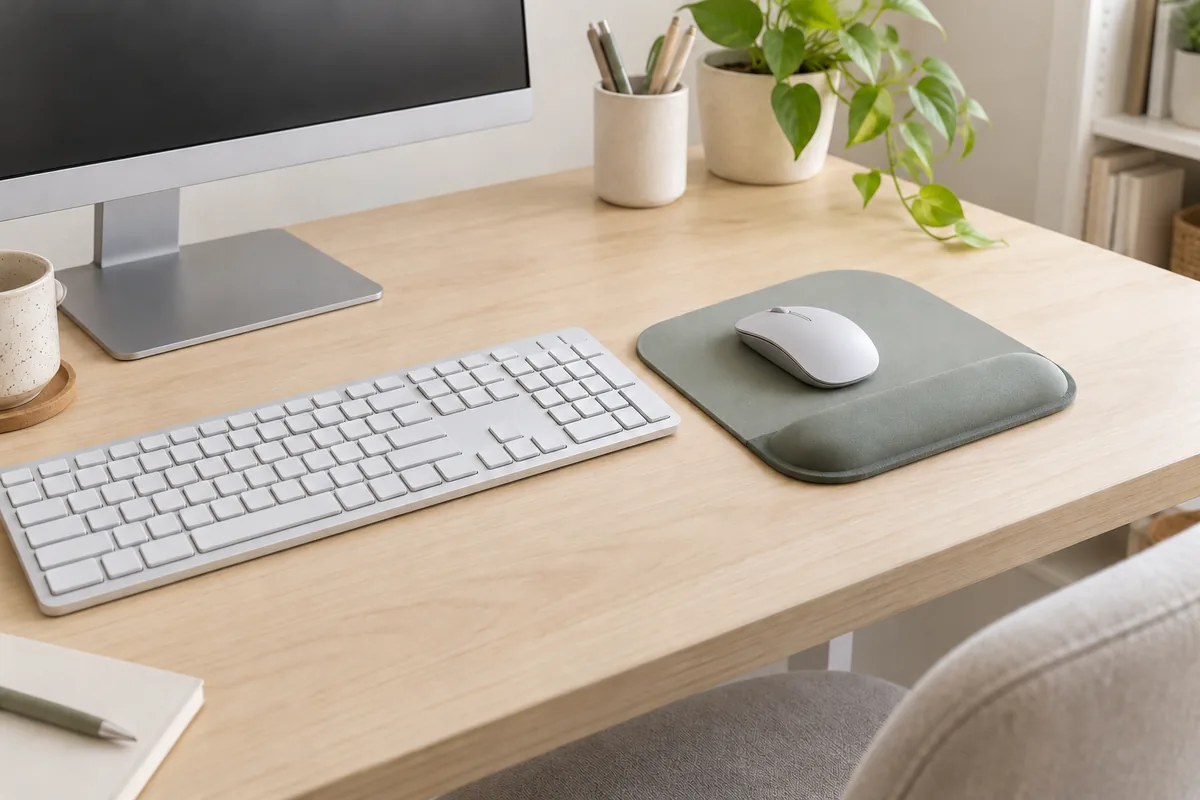
Place a mouse pad with wrist rest beside your keyboard, with the mouse within easy reach. Use the raised cushion as optional palm support rather than something that forces your hand into a bend. Check reach, support height and cursor travel with your own mouse. A comfortable arrangement depends on the whole workstation.
Key Takeaways
- Arrange the chair, keyboard and mouse together before adjusting the pad.
- Check where the cushion contacts your hand and whether it restricts movement.
- Match the available tracking area to the way you actually use your mouse.
- Judge height with your own mouse and hand position; material alone cannot establish fit.
- Recheck the arrangement when changing desks, devices or working positions.
How to position and use the pad
These editorial fit checks apply public workstation guidance to your own desk and equipment.
1. Start with the desk and chair
Sit in your normal working position before placing accessories. Notice whether you are lifting a shoulder, leaning forward or reaching around other equipment to use the mouse. Move loose objects out of the area where your hand needs to travel.
OSHA's workstation-position guidance describes relaxed shoulders and hands, wrists and forearms aligned. Treat the mouse pad as one part of that arrangement. A cushion cannot fix a desk that makes you reach awkwardly.
2. Put the mouse beside the keyboard
For a conventional pad with a raised front cushion, orient the cushion toward you and put the mouse on the tracking surface behind it. Check the instructions for a differently shaped model.
OSHA's mouse-placement guidance recommends keeping the mouse close to the keyboard. If a number pad or crowded work surface pushes the mouse too far sideways, consider rearranging the equipment or using a shorter keyboard.
The pad does not need to touch the keyboard. Leave room for the mouse, its cable if present, and any normal changes in hand position.
3. Check the support contact
Bring your hand to the mouse in your usual grip. Notice where the raised cushion meets your hand and whether it pushes your wrist up or traps it against an edge. You should be able to change position without fighting the support.
OSHA's wrist/palm-support guidance distinguishes active typing from resting: hands should move freely while typing, and a pad should contact the heel of the hand during a pause rather than the wrist. This typing advice is useful context, but it is not an instruction to maintain one fixed hand position throughout every mouse task.
CCOHS's wrist-rest guidance also emphasizes selecting supports as part of the workstation. Check the actual contact and movement instead of assuming that every raised pad is suitable.
4. Compare the cushion with your mouse height
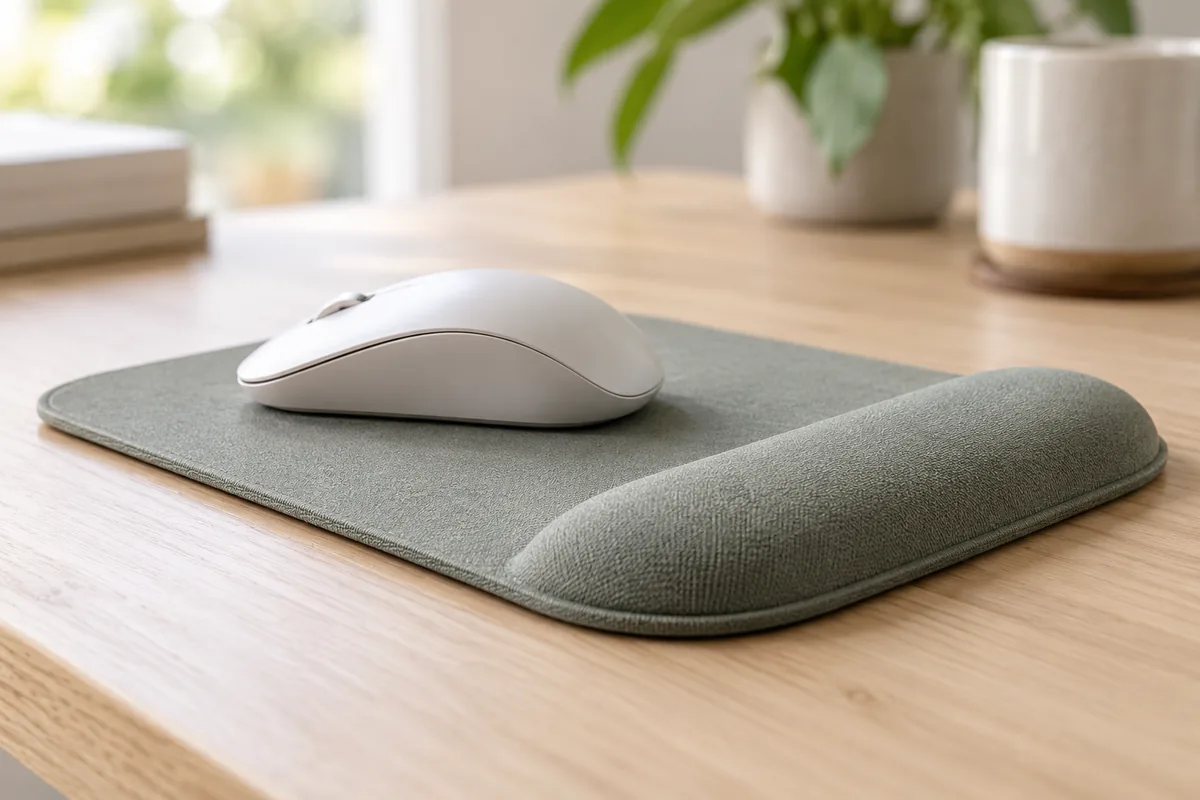
View the mouse and support from the side. A cushion that suits one mouse may feel different with a lower or taller device. If you have to bend your hand to reach the buttons, change the arrangement and compare how it feels without the support.
Compare the exact model's listed dimensions with your device and working position; no universal cushion height is prescribed here.
5. Try your ordinary cursor movements
Open a task you do regularly. Move between different parts of the screen, select text and drag a window. These are simple fit checks, not tracking-performance tests.
Watch for repeated collisions with the cushion or pad edge, the mouse running out of surface, and the pad shifting on your actual desk. If any of these interrupt the task, adjust the placement or consider a different footprint. A compact pad and a large mouse-movement range may be a poor combination even when both items work as intended.
OSHA also suggests adjusting pointer settings so the screen can be covered with comfortable movement. Change one setting at a time and compare it during normal work; a pad cannot choose that setting for you.
6. Check keyboard and mouse supports separately
If you use a keyboard rest as well, position it for the keyboard rather than lining up both cushions for appearance. The two devices can have different heights and tasks.
For example, the DEMON CHEST Luxe Black listing specifies a gel mouse support and a memory-foam keyboard support. Calling the entire set “gel” would obscure that difference. See the gel and memory foam guide when comparing material descriptions.
Placement checklist: what to change
| What you notice | What to check next |
|---|---|
| You reach sideways for the mouse | Clear adjacent desk space and reconsider keyboard position or width |
| The cushion pushes the hand into a bend | Compare support height and placement with the actual mouse |
| The support blocks a usual movement | Reposition it or compare a flat pad |
| The mouse repeatedly reaches the pad edge | Compare available tracking area with your normal cursor travel |
| The base shifts during use | Check the desk surface and the specific model's instructions |
| A new desk feels different | Repeat the checks before assuming the previous placement will fit |
Two catalog examples to compare
| Model | Listing facts checked | What to assess yourself |
|---|---|---|
| ErgoComfort Pink Serenity Pad | Gel support; Lycra fabric mouse surface; non-slip base | Footprint, support height and tracking with your mouse |
| Luxe Black set | Gel mouse support; memory-foam keyboard support; PU leather cover; non-slip base | Each component's position and fit with your devices |
These facts come from the corresponding ErgoComfort listing and Luxe listing, checked on October 7, 2026. Confirm current dimensions and care instructions for the exact model before buying.
Who this setup suits
An integrated support is worth comparing if you want a mouse surface and a cushion in one item and have space for both. This checklist is intended for office and home-office users adjusting their own equipment.
If you prefer broad mouse movements, frequently change grip or find a raised cushion intrusive, compare a flat surface instead. For a temporary laptop desk, use the portable mouse pad checklist.
FAQ
Should the cushion touch my wrist or palm?
Check that it is not pressing into the underside of the wrist or forcing a bend. OSHA's pause guidance refers to the heel of the hand. During mouse use, assess whether the support lets you move freely with your device.
Should I keep my hand on the support all the time?
Do not use the cushion as an anchor that fixes your hand in one position. Check ordinary movements and change position as needed. The cited typing guidance distinguishes active typing from resting; mouse tasks and device shapes vary.
Should the pad touch the keyboard?
No specific gap is prescribed here. Keep the mouse close enough to reach comfortably and leave enough usable surface and cable clearance.
What is the best wrist-rest height?
There is no universal height recommendation in this guide. Compare the cushion with your mouse, hand position and desk. A gel or foam label alone cannot answer the fit question.
Can I use a wrist-rest mouse pad for gaming?
Check the movement range your games require. If the raised support or footprint obstructs it, compare a larger flat pad. This article has no gaming-performance test results for the catalog products.
Sources and method
We reviewed OSHA's wrist/palm-support, mouse and workstation-position guidance, and CCOHS's wrist-rest guidance, on October 7, 2026. The step sequence and comparison checklist are our editorial application of that guidance. Catalog facts are attributed to the individual listings above. We did not conduct product or clinical testing. Images are AI-generated illustrations rather than product photographs.