Laptop Desk Setup: Where to Put an External Keyboard and Mouse
Published by the DEMON CHEST Editorial Team. DEMON CHEST sells the products linked in this article. Public workstation guidance and catalog facts are identified separately.
Quick Answer
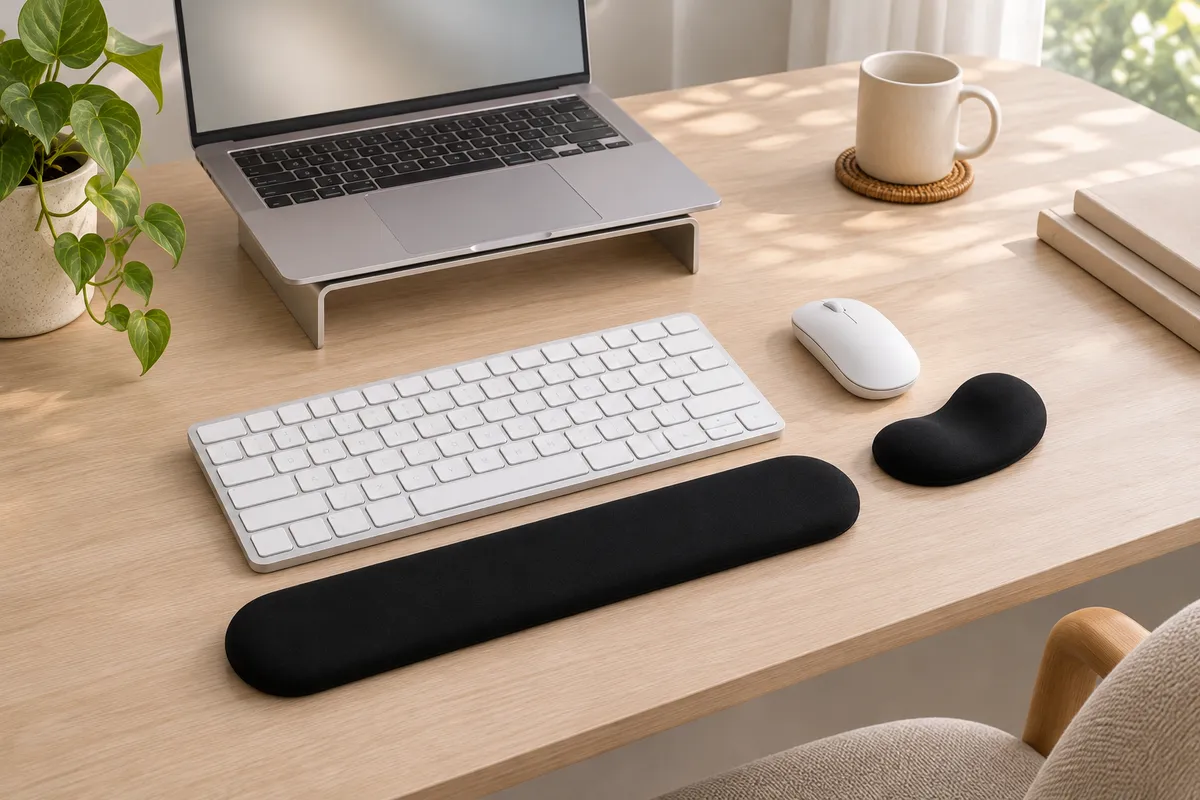
For a longer laptop session, raise the laptop screen and place a separate keyboard and mouse on the desk in front of you. Keep the keyboard directly ahead, the mouse close beside it, and the two inputs on a surface that leaves room to move. Add a wrist rest only when its height and position match the particular keyboard or mouse setup. The right arrangement depends on the screen, chair, desk and equipment together.
Key Takeaways
- Separate the screen from the keyboard when the laptop screen is too low for the task.
- Put the external keyboard directly in front of you and keep the mouse close to it.
- Check reach, desk depth, cable paths and mouse movement before adding a support.
- Treat a wrist rest as a fit choice. It does not replace a workstation adjustment.
1. Decide when the laptop needs separate inputs
Start with the task and the time you expect to spend. A short message at a kitchen table may not need the same arrangement as a long writing or spreadsheet session. For prolonged laptop use, HSE's display-screen guidance describes separating the keyboard and mouse from the laptop so the screen can be raised.
That separation gives you two independent positions to check: the screen can sit higher, while the keyboard and mouse can stay on the desk at a workable reach. It does not create one universal posture. OSHA's computer-workstation guidance describes a custom-fit workstation with basic design goals rather than one arrangement for every person.
Use the laptop's built-in keyboard and trackpad for brief tasks if that is the practical choice. When the screen and input positions conflict during a longer session, separate devices are a useful first adjustment to consider.
2. Raise the screen without moving the inputs
Place the laptop on a stable riser or stand that leaves its screen visible and its base secure. Keep the screen centered with your usual sitting position. The stand is there to change screen height; it does not need to hold the external keyboard or mouse.
After raising the laptop, check the cable path and the space underneath. A cable that crosses the keyboard or mouse area can change where you place your hands. A stand that uses the front edge of the desk can also reduce the depth available for the external inputs.
The screen and desk are a pair. If the laptop is raised but the keyboard is pushed too far away, the setup has traded one reach for another. Move the keyboard forward, then recheck the screen and chair together.
3. Place the keyboard first
Put the external keyboard directly in front of you. Its center should match the part of the screen you read most often, and there should be enough room behind or beside it for cables without pushing the board toward the desk edge.
OSHA's keyboard guidance says to put the keyboard directly in front of you and consider its placement with the mouse and wrist or palm rests. Check these points:
- Your shoulders can stay relaxed while your hands reach the keys.
- Your elbows can stay near your body rather than reaching forward.
- The keyboard is not tilted in a way that forces your wrists up or sideways.
- The front edge leaves room for a support if you choose to use one.
- The desk edge does not press into your forearms as you move.
There is no benefit in copying a fixed distance from another desk. Use the keyboard, chair and desk height together, then make small adjustments while you type.
4. Put the mouse beside the keyboard
Place the mouse close to the keyboard and on the same working surface. OSHA's pointer guidance highlights close placement and a straight, neutral wrist position as practical checks. CCOHS's mouse-location guidance also treats the mouse as part of the keyboard arrangement.
Run one ordinary task: select a paragraph, move across a spreadsheet, or drag a window. Watch for a repeated reach to the side, a cable that catches the mouse, or a pad edge that stops the movement. If the mouse area is too small, move the keyboard before pushing the mouse farther away.
| Arrangement | What to check | When it may fit |
|---|---|---|
| Laptop keyboard and trackpad | Screen height, short task, available reach | Brief use or a temporary message |
| Raised laptop with external keyboard and mouse | Stable stand, screen position, input reach | Longer desk sessions |
| External keyboard and mouse with separate rests | Front-edge match, mouse movement, desk depth | When the supports suit the equipment and the user prefers them |
5. Add a support only after the input layout works
A wrist rest should follow the keyboard and mouse position. For the keyboard, compare the rest with the keyboard's front edge and check whether your hands can move freely while typing. For the mouse, check whether the raised support sits where the palm can pause without blocking normal cursor travel.
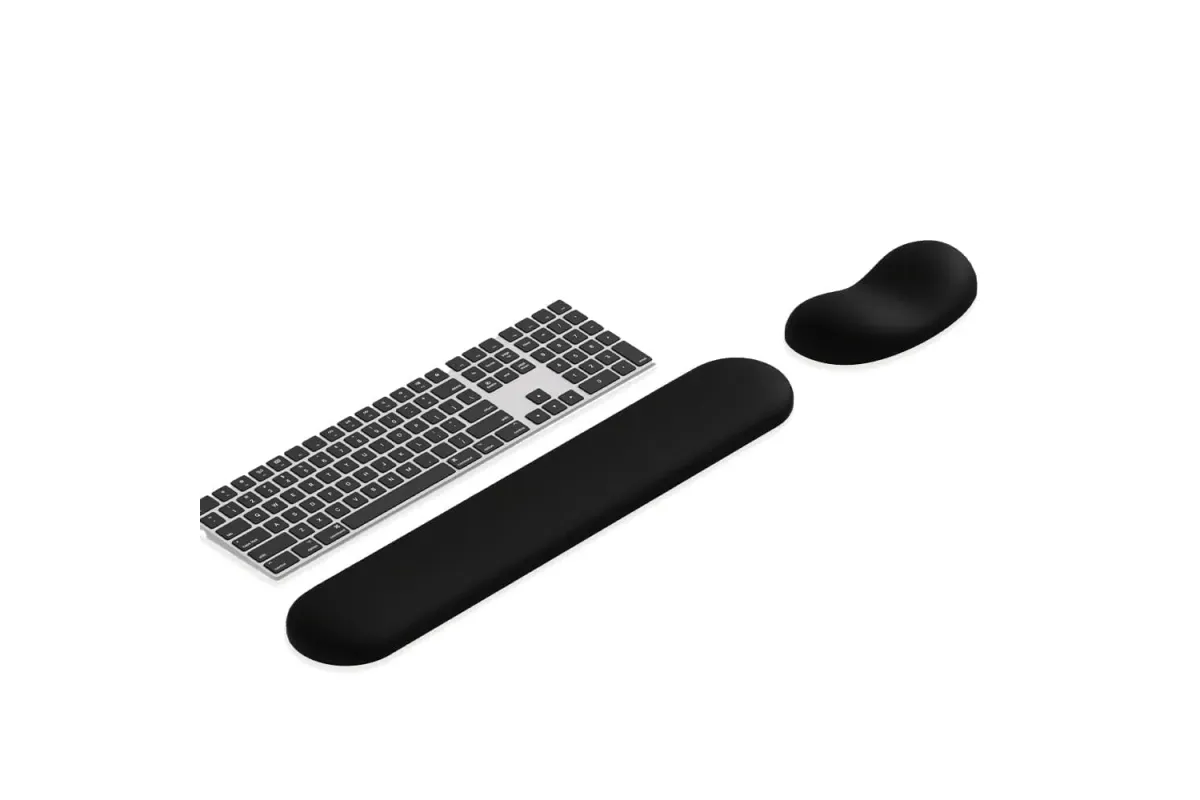
The DEMON CHEST Luxe Black set, ASIN B0FSYCX8F5, is one catalog example with a memory foam keyboard support, gel mouse support, PU leather cover and non-slip base in the recorded listing facts. Those facts describe that specific listing; they do not establish a universal height, required use or medical outcome. Current offer details belong on Amazon.
For a more detailed keyboard rest check, see How to Use a Keyboard Wrist Rest: Placement and Fit. For mouse support placement, see How to Use a Mouse Pad with Wrist Rest.
Who this guide fits
This guide fits someone who uses a laptop as a primary computer at a desk and wants to separate the screen from the input devices. It also helps a person comparing a stand, external keyboard and mouse before adding desk accessories.
It does not establish a medical setup, a universal desk height or a guaranteed result. If a setup causes persistent or worsening pain, numbness, tingling or weakness, seek appropriate professional advice rather than assigning the cause to one accessory.
FAQ
Do I need an external keyboard and mouse for every laptop?
No. The useful question is whether the screen and input positions work together for the task and time involved. HSE and OSHA guidance is especially relevant when a laptop is used as a primary computer or for prolonged work.
Where should the external keyboard go?
Place it directly in front of you, with room for the mouse and any cables. Adjust the chair, desk and keyboard together so your hands can move without a sustained bend or reach.
How close should the mouse be to the keyboard?
Keep it close enough that you can move from the keyboard without a long side reach. The exact distance depends on the keyboard width, hand preference, desk and task.
Should a laptop sit to the left or right of the keyboard?
Use the position that keeps the screen and keyboard arrangement clear and centered for your main task. A laptop stand, external monitor or desk shape may determine which side leaves the most usable space.
Does a wrist rest make the laptop setup ergonomic?
A rest can be one part of the arrangement, but it does not set the screen height or fix a keyboard that is too far away. Check the full workstation and the support's fit with the exact input device.
Sources and Method
This guide uses the linked OSHA and HSE workstation pages and CCOHS mouse-location guidance, checked on November 6, 2026. The sources describe workstation placement and risk checks; they do not certify DEMON CHEST products or establish a single correct arrangement.
The product example uses the recorded product-facts entry for B0FSYCX8F5, last listing-checked October 7, 2026. No price, inventory, rating, dimension or product-test claim is made here. The first illustration is AI-generated from catalog references and is labeled as illustrative. The second is a catalog photograph.
For temporary desks and packing, use the Portable Mouse Pad for Laptop Travel. For a broader review of screen, chair, keyboard and mouse placement, see the Ergonomic Desk Setup Guide. Browse the laptop mouse-pad collection after checking the space your equipment leaves.